TABLE OF CONTENTS
Whether you’re just getting started or looking to unlock more features, this guide is your go-to resource for navigating the Blockonomics platform.
Creating an Account
- Head over to the Blockonomics Register page.
- To create an account you have two options:
- Email and Password:
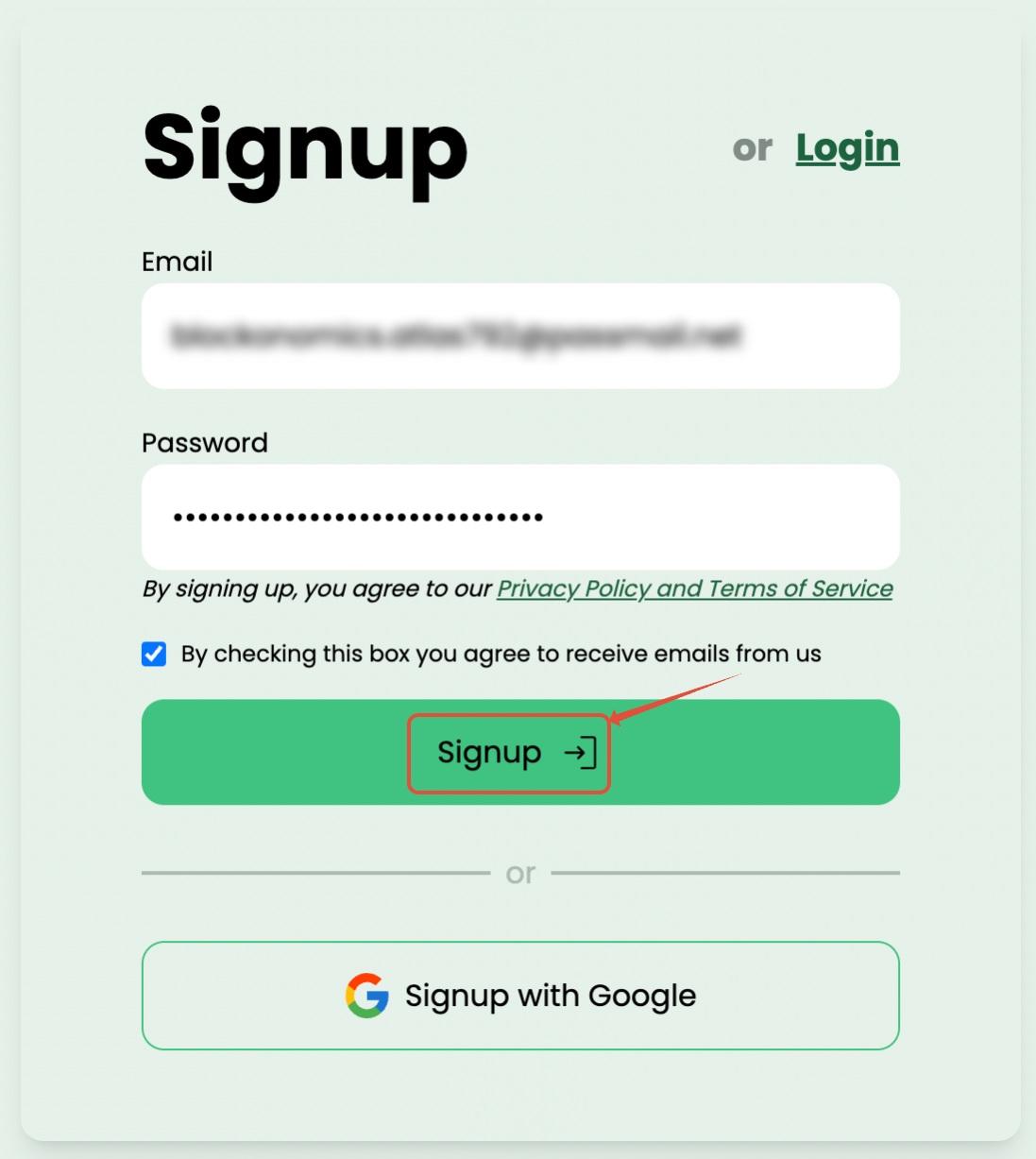
- Enter you Email address and a strong Password. Please make sure to keep password secure and never share it with anyone else. Once you have entered the information click on "Signup".
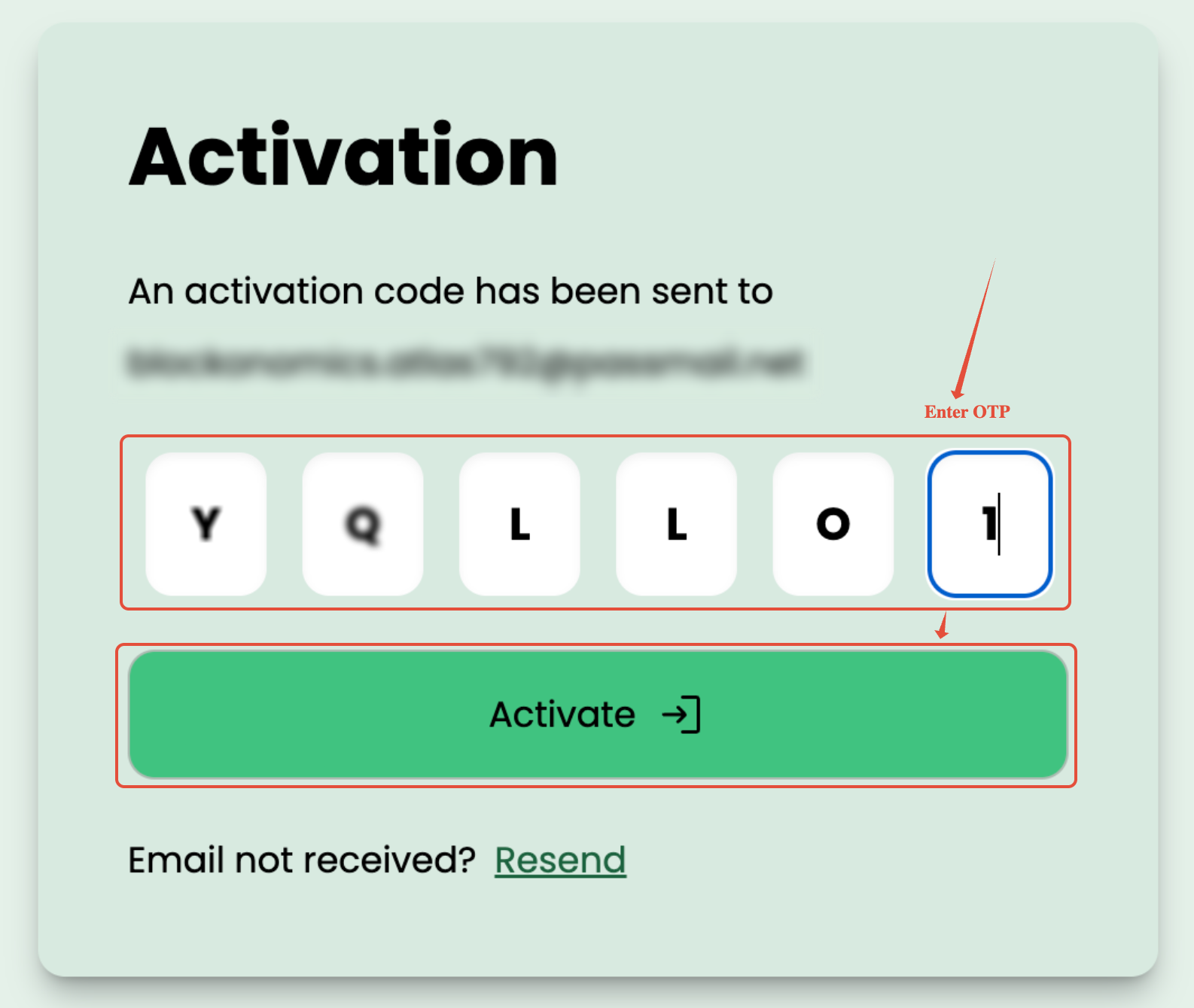
- To verify ownership of you Email address, you will receive a 6 digit OTP on your entered Email address. Please make sure to check your spam folder for the verification email. If you haven't received any Email in a while and it's not in spam folder either, click on "Resend".
- Enter the OTP from received email in the screen show and click on "Continue".
- That's it! You will be logged in to your new account and take to Dashboard. Welcome to your new Blockonomics account.
- Enter you Email address and a strong Password. Please make sure to keep password secure and never share it with anyone else. Once you have entered the information click on "Signup".
- Google account:
- To create a new account using your "Google" account, click on "Signup with Google" button.
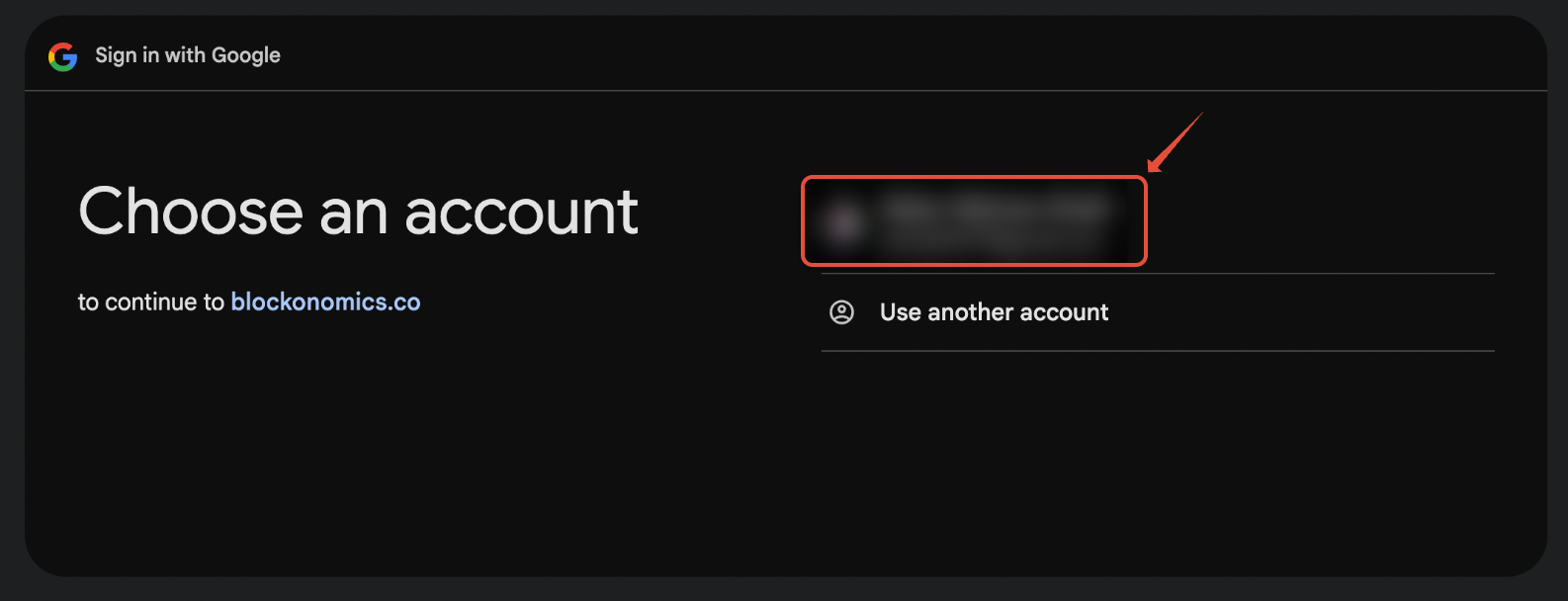
- You will be take to Google OAuth Screen. Please select a Google that you want to create account with.
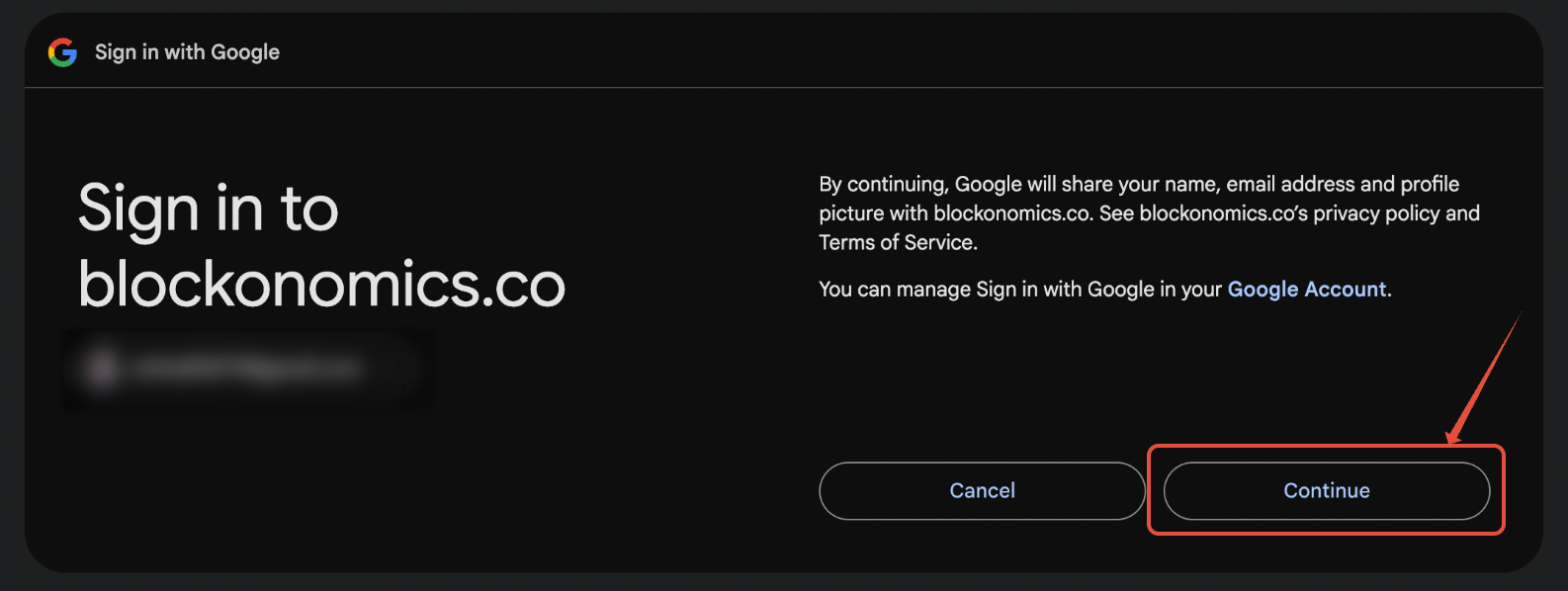
- Next, you will be ask for your permission listing things Blockonomics can access related to your Google account. Click on "Continue".
- That it! You will be logged in to your new account and take to Dashboard. Welcome to your new Blockonomics account.
- Email and Password:
Adding a Wallet
To add new wallet to your Blockonomics account, follow the steps below:
- Create an Account, if you haven't already and go to Dashboard > Wallets.
- Click on "+ Add a wallet" but and select the wallet type that you want to add.
- BTC Wallet: To add Bitcoin Wallet, you would need a Bitcoin wallet which can can show the Master Public Key (xPub/yPub/xPub) and a sample receiving address.
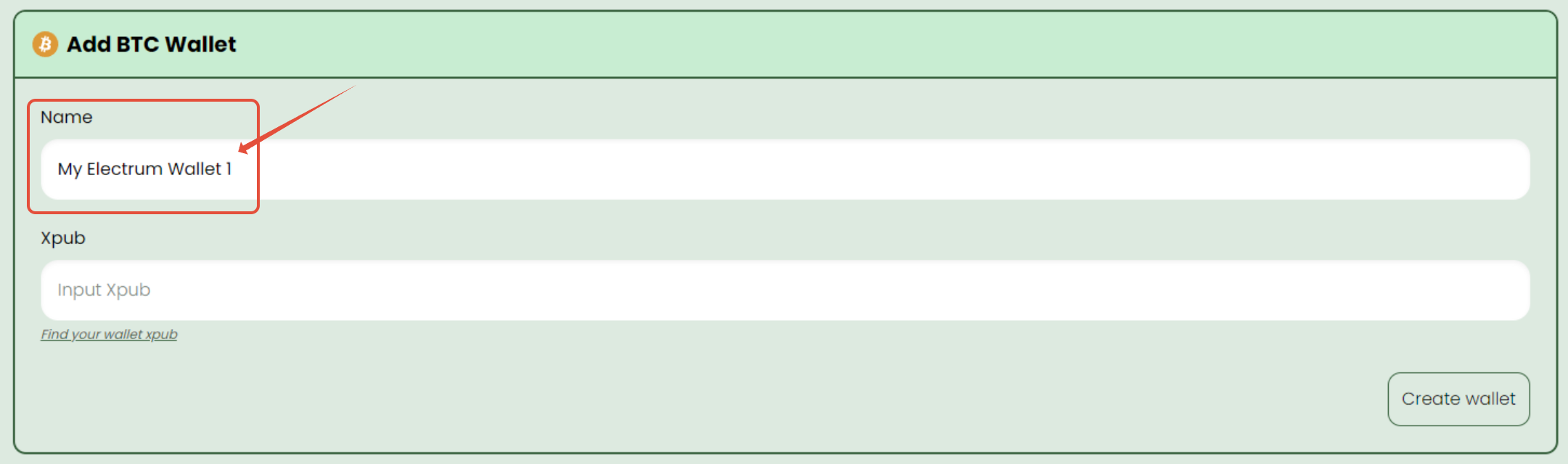
- Enter "Name" of your wallet. You can enter any name that makes it easy for you to remember which wallet it is.
- Copy xPub from your wallet and paste it "Xpub" field.
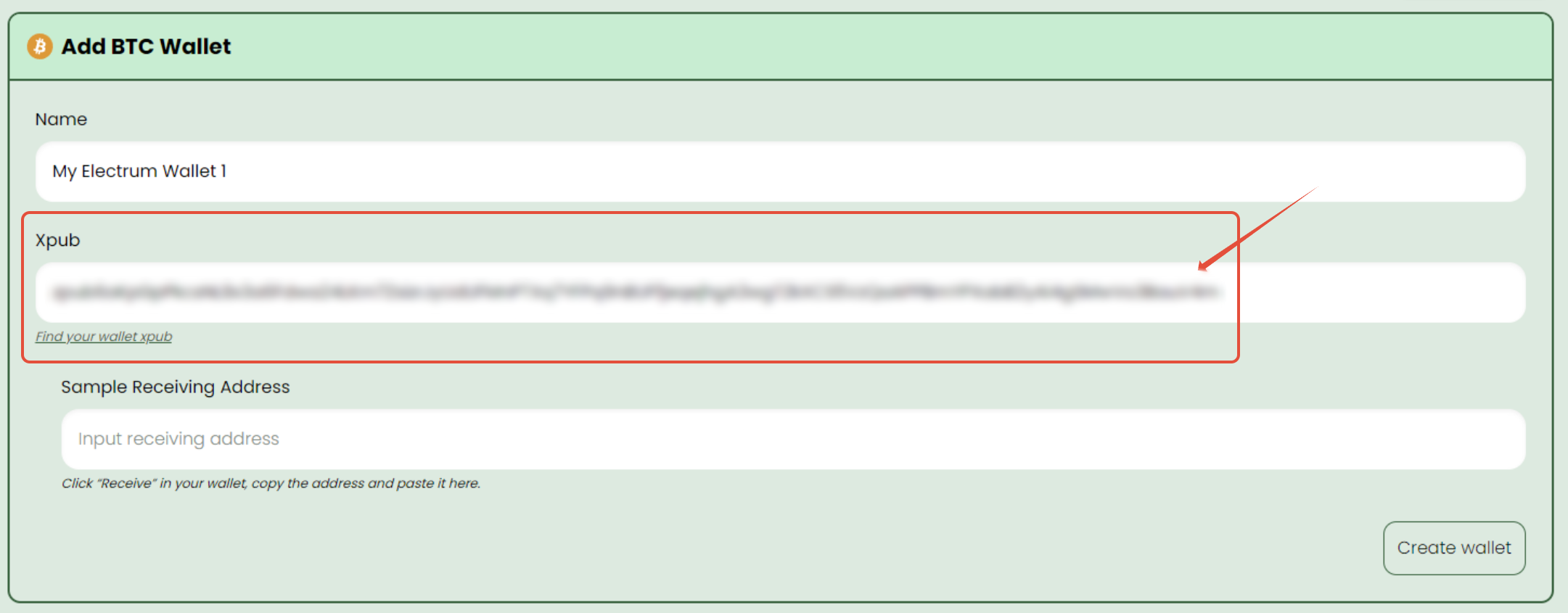
- If you don't know your wallet's Master Public key (xPub), you can follow the instruction in this Help article
- If you don't already have a Bitcoin wallet, we recommend using Electrum wallet.
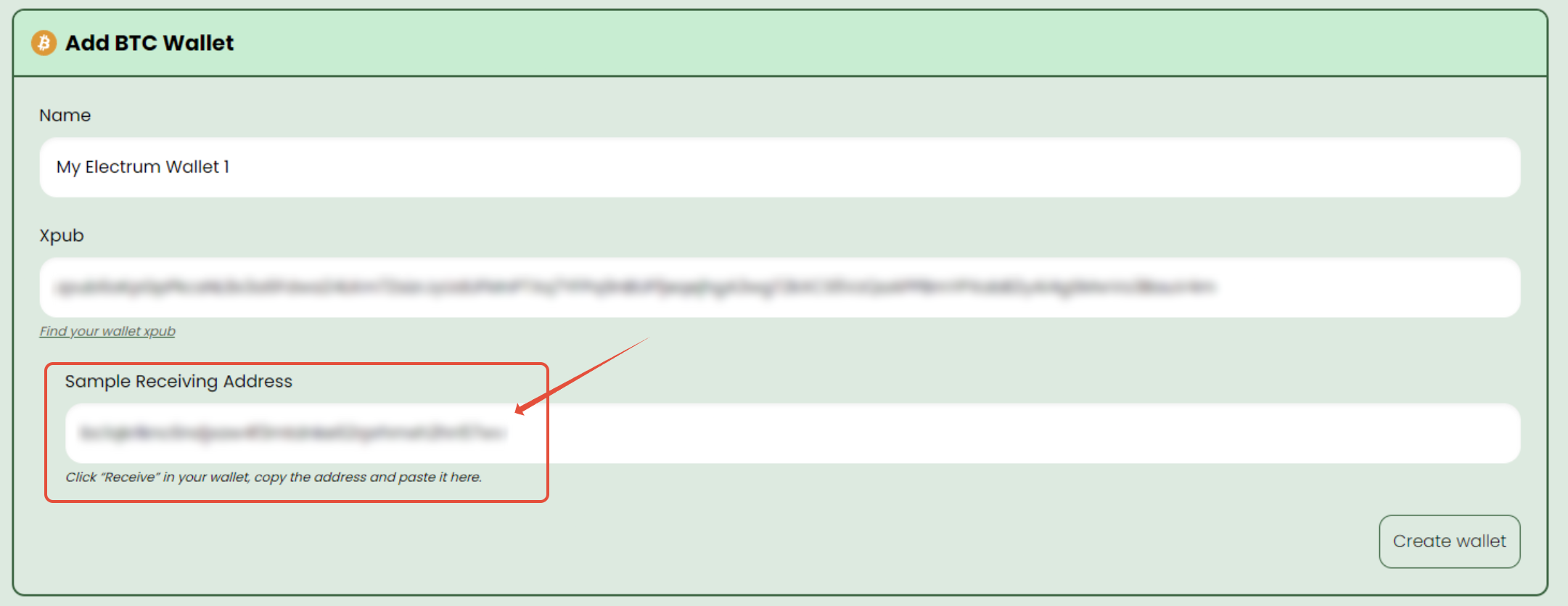
- From same wallet, copy a receiving address and paste it in "Sample Receiving Address" field below. This makes sure that both xPub and receiving address belong to same wallet.
- Click on "Create Wallet" button to save this wallet.
- Enter "Name" of your wallet. You can enter any name that makes it easy for you to remember which wallet it is.
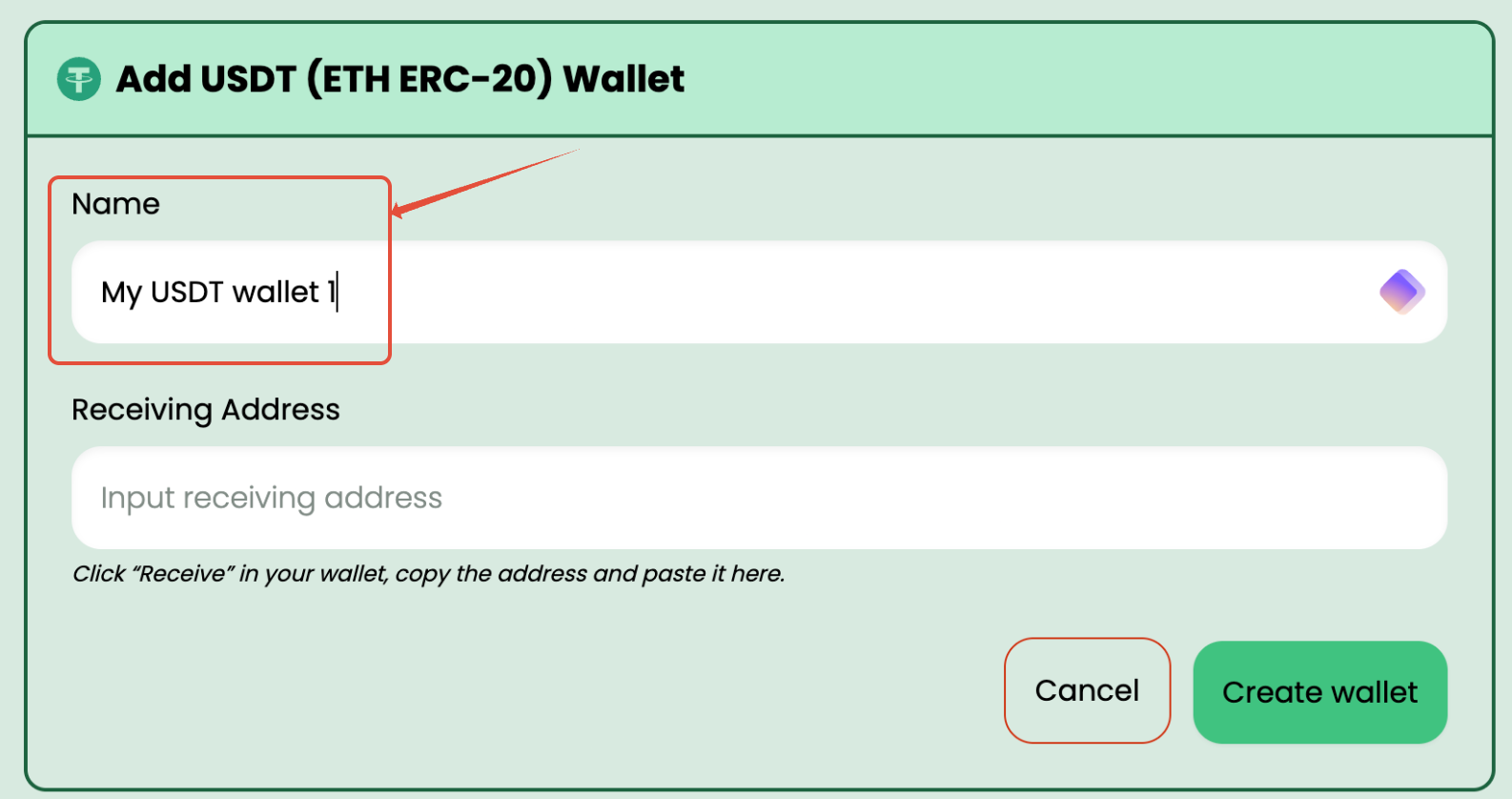
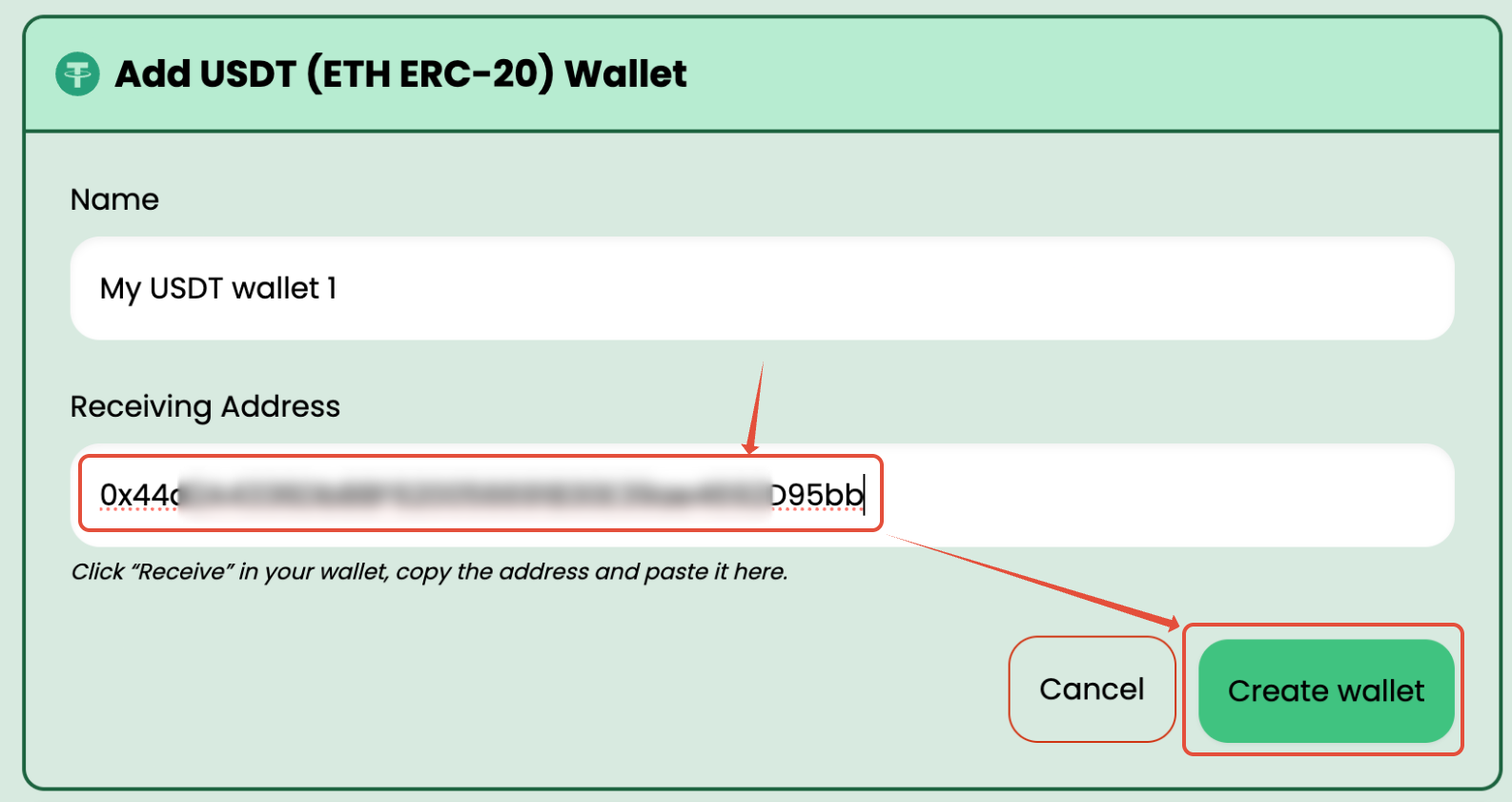
- USDT Wallet:
- Enter "Name" of your wallet. You can enter any name that makes it easy for you to remember which wallet it is.
- From you wallet copy the Wallet Address and paste it under Receiving Address and click on "Create wallet" to save this wallet.
- The wallet will then be added and you can see it listed there.
- Enter "Name" of your wallet. You can enter any name that makes it easy for you to remember which wallet it is.
- BTC Wallet: To add Bitcoin Wallet, you would need a Bitcoin wallet which can can show the Master Public Key (xPub/yPub/xPub) and a sample receiving address.


Adding a Store
To add new store to your Blockonomics account, follow the steps below:
- If you haven't already, Create an Account and Add a Wallet.
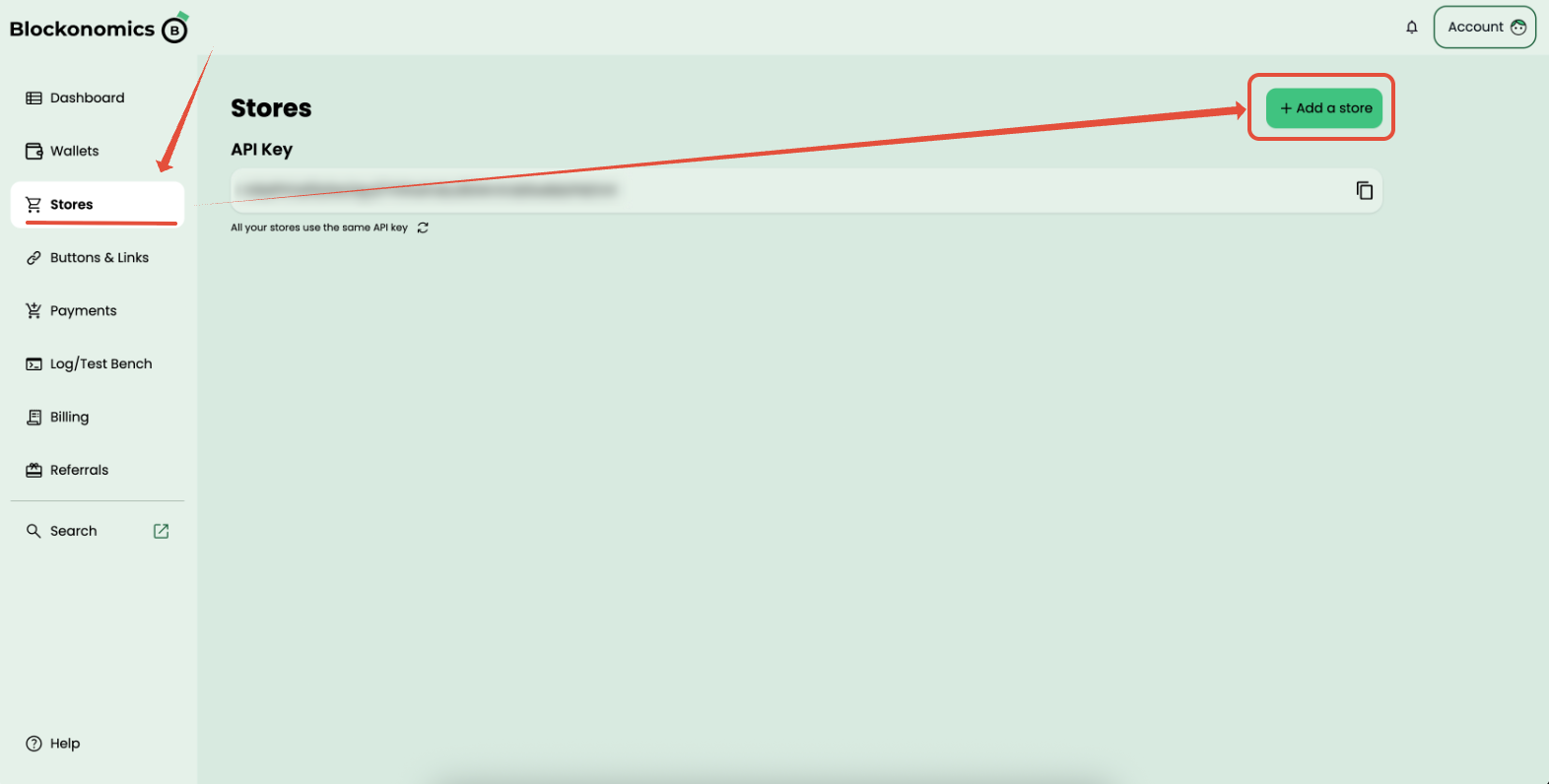
- Go to Stores page Dashboard > Storesand click on "Add a Store" button in Top Right corner
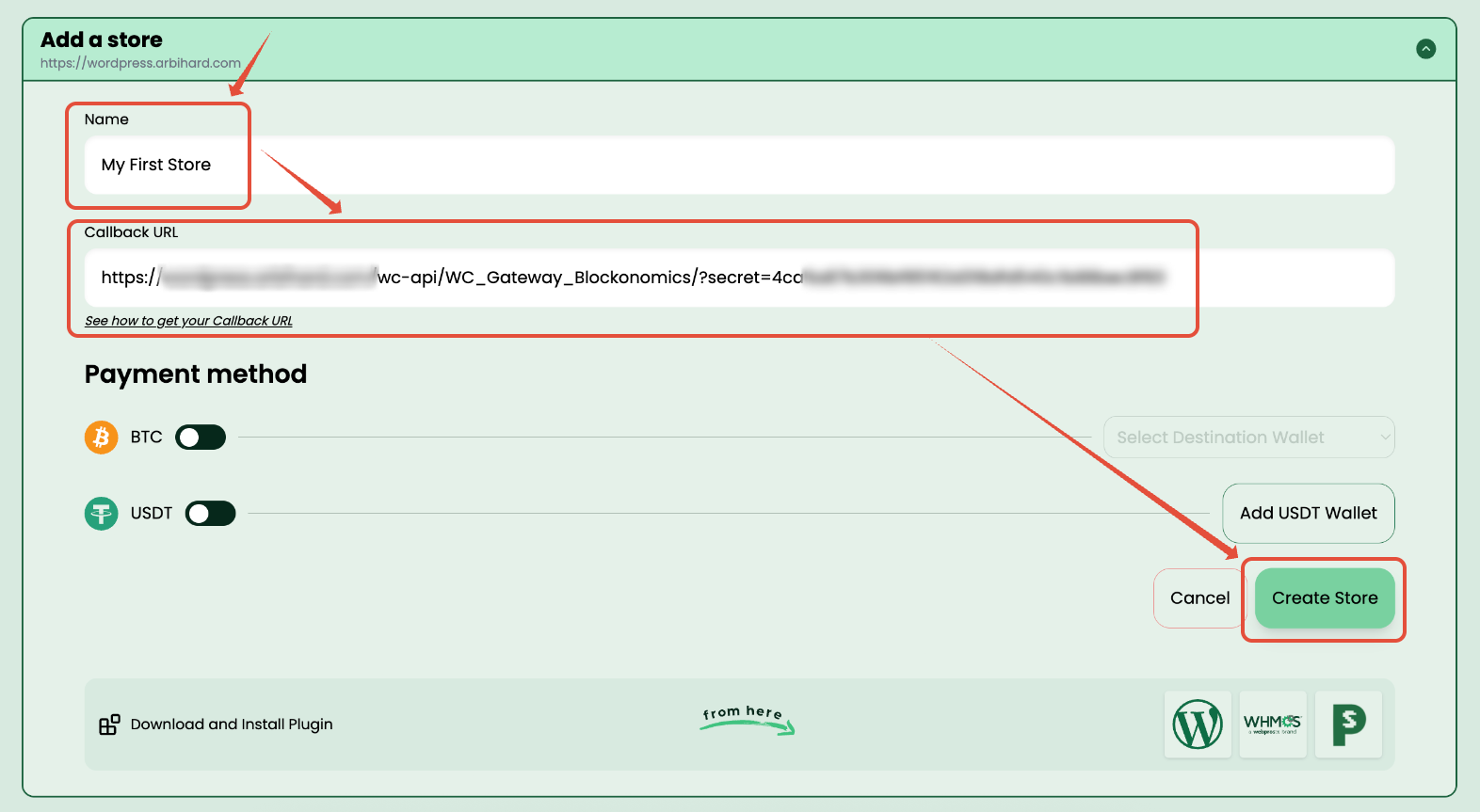
- In the "Add a store" section, add following details
- Name: Give your Store a name so it's easy for you to remember which store this is. It can be anything.
- Callback URL: Add your Store's Callback URL (You can find this in your plugin setting or your own endpoint if your are using an API).
- Once you have added both these values, click on "Create Store" button as shown below:
Add a Payment method to a Store
To add a Payment method to a Store (or in other words, link a wallet to a store), follow these steps:
- If you haven't already, Create an Account, Add a Wallet and Add a Store.
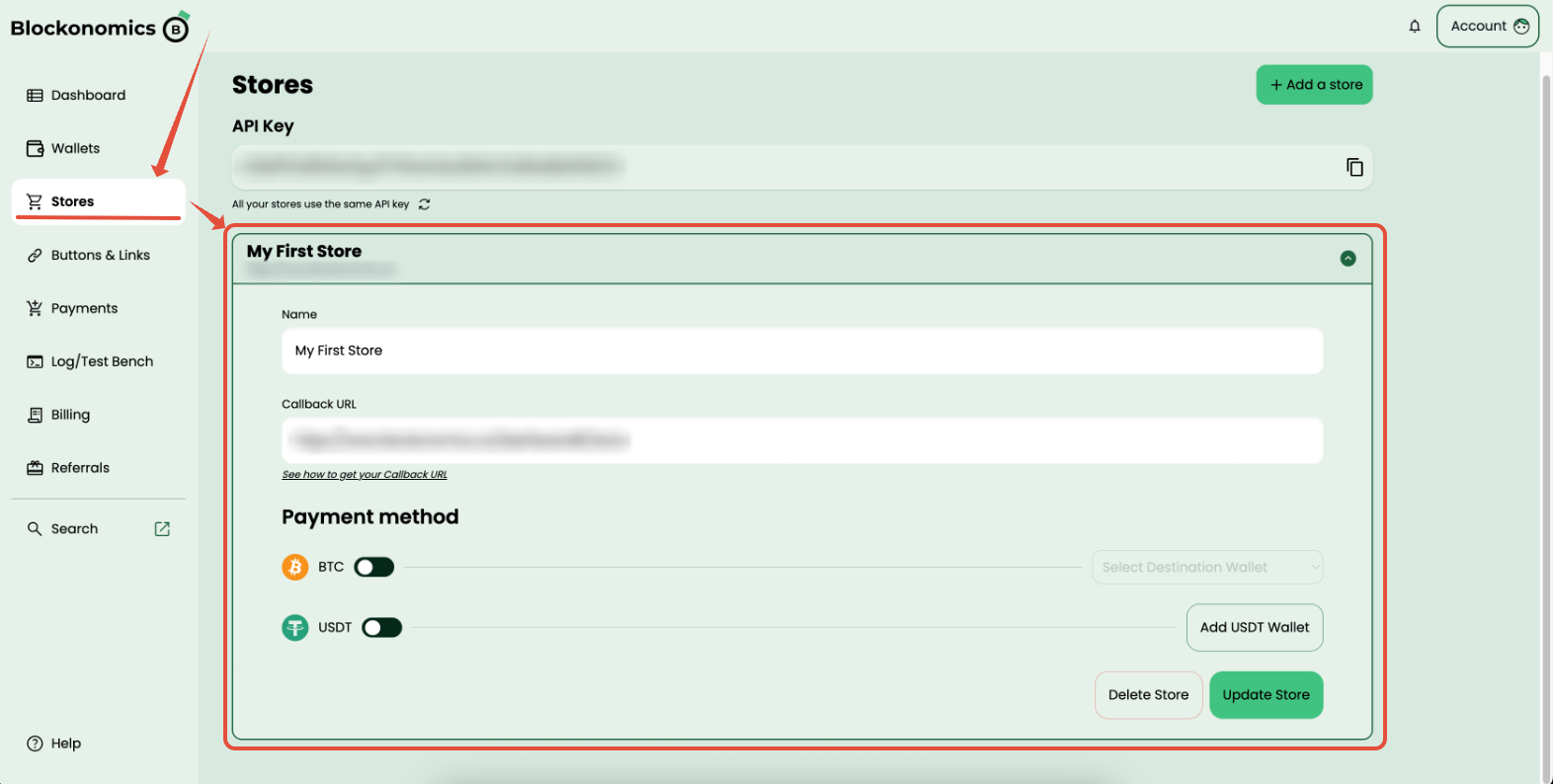
- Go to Stores page Dashboard > Storesand click on Store that you want to add payment button to.
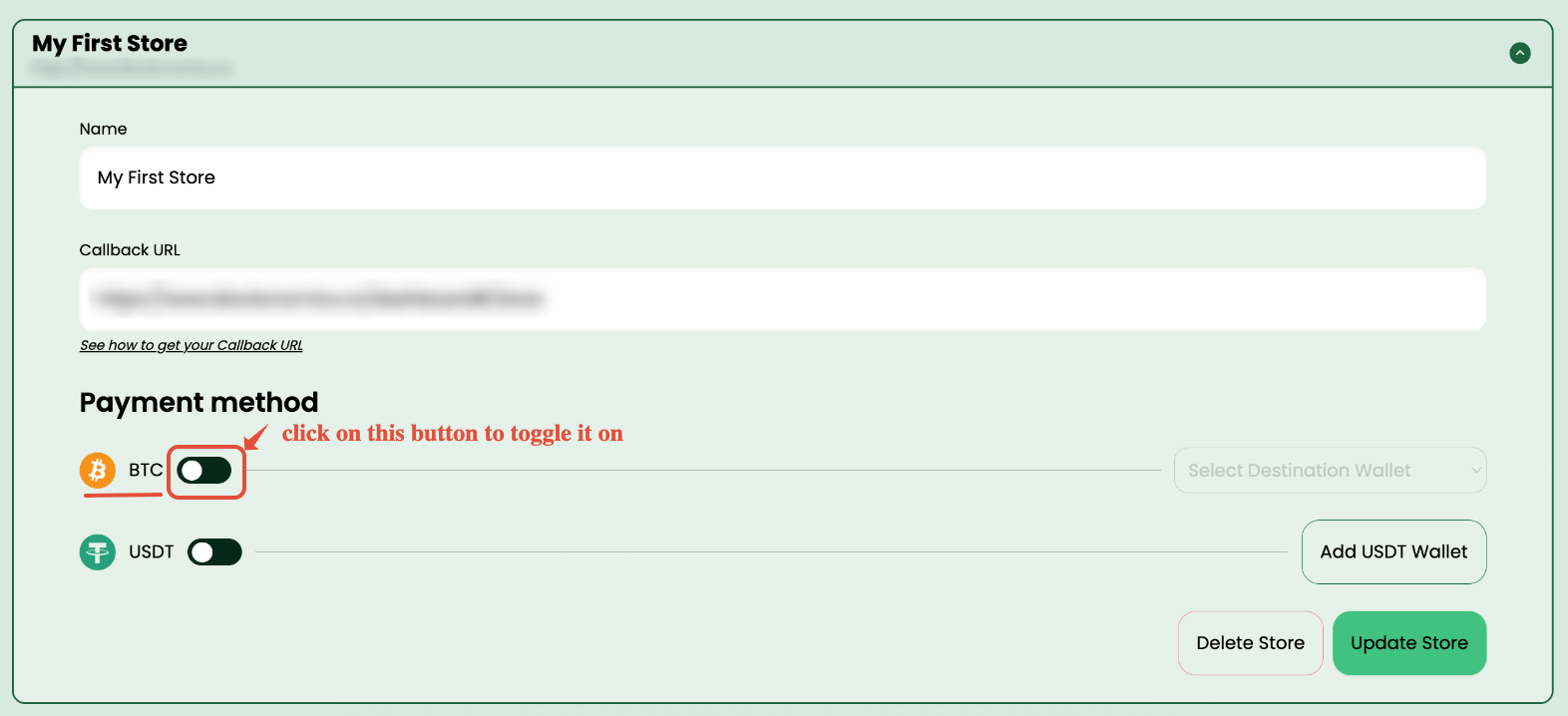
- Click on the Wallet type that you want to add to this store by toggling the button next to that wallet type on.
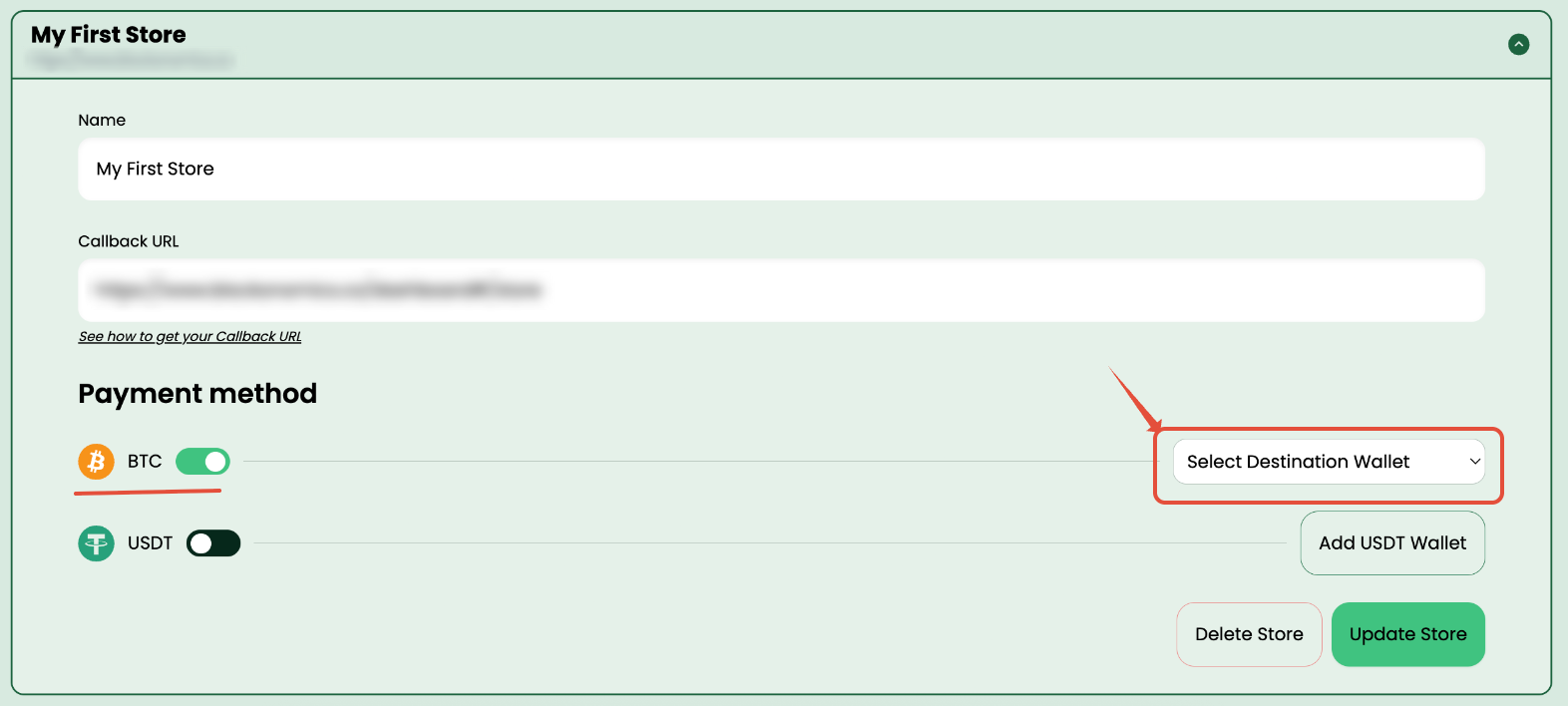
- From the drop down option, select the wallet that you want to link to this store.
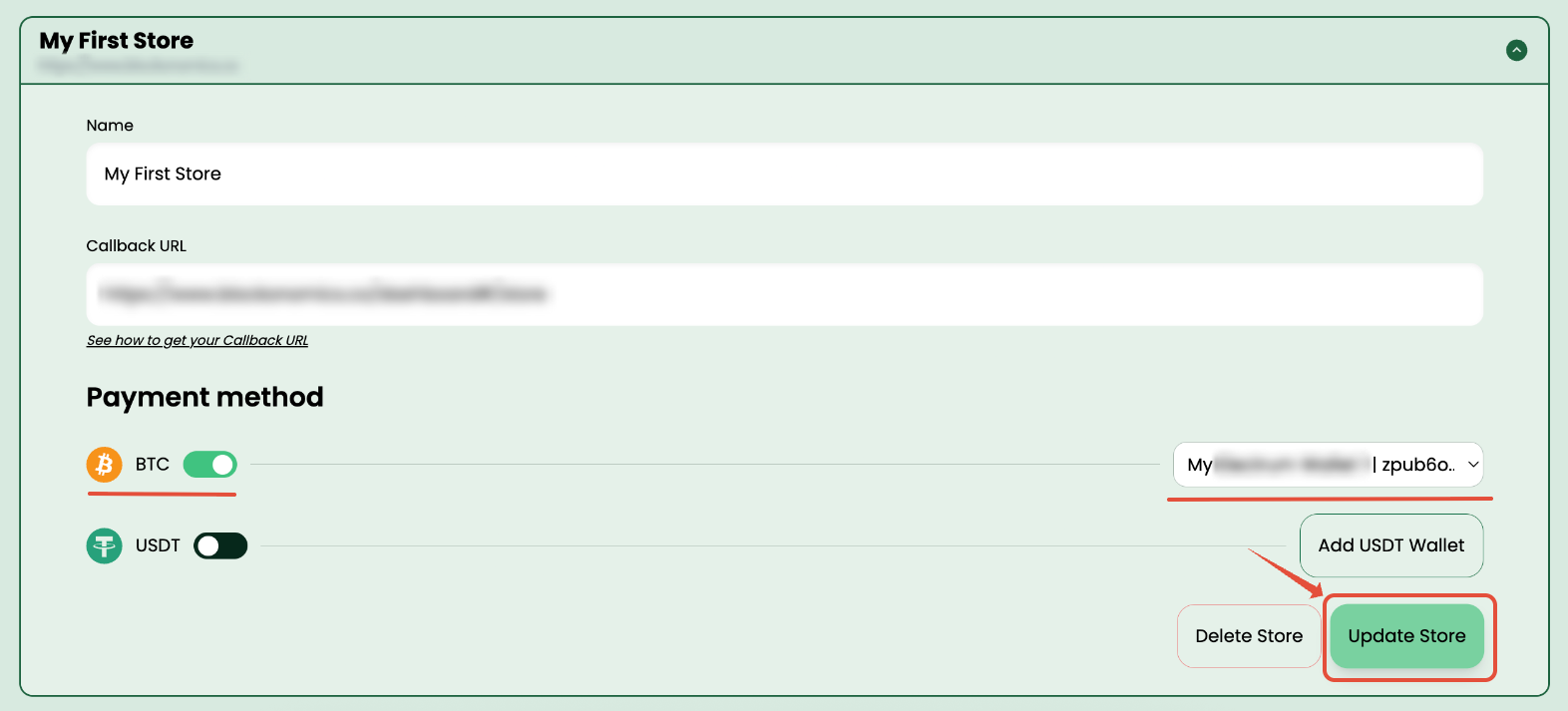
- Once you have done these steps, click on "Update Store" button.
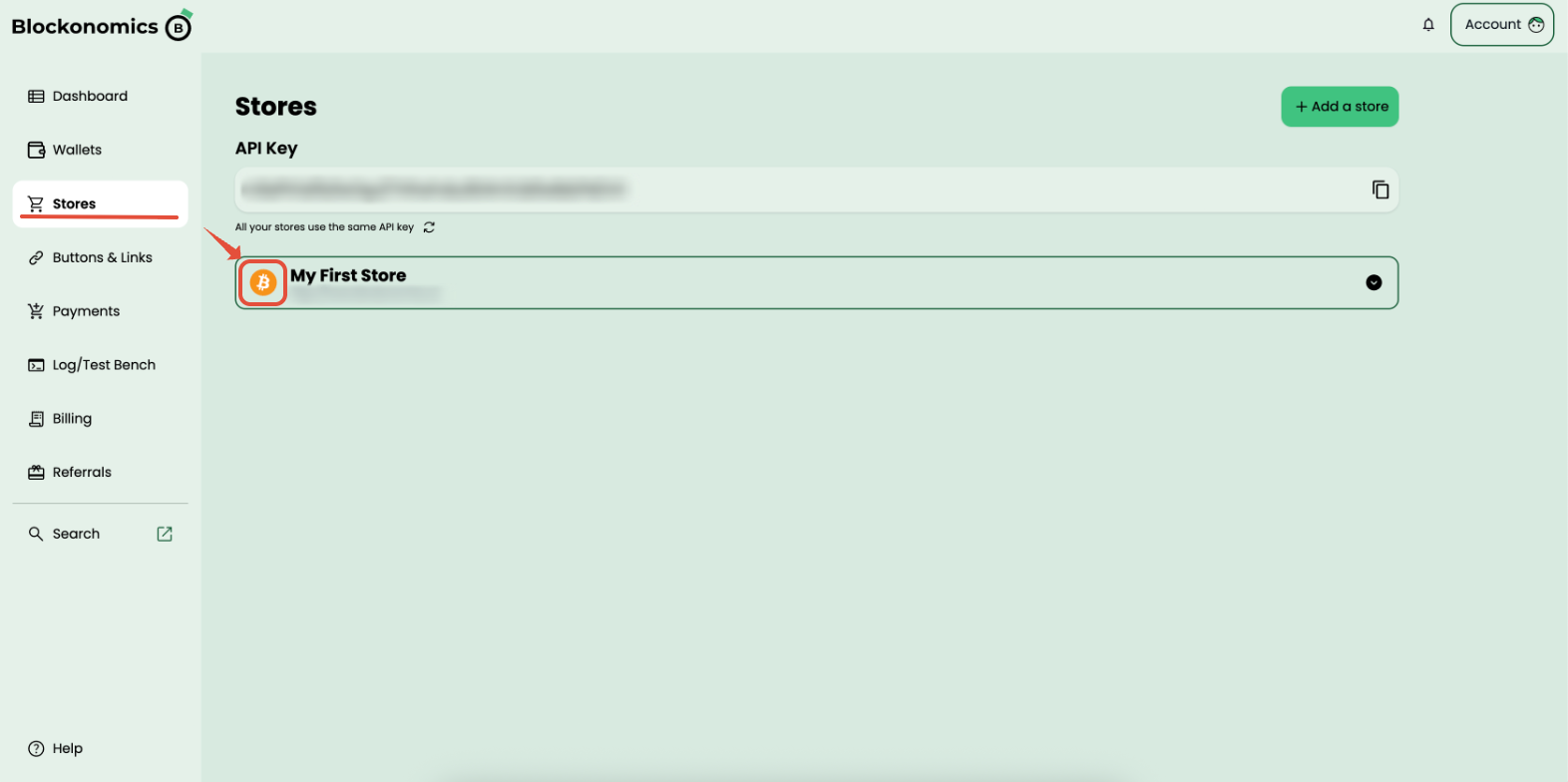
- Now you should be able to see the linked wallet type's icon next to that store in store list as shown below.