
TABLE OF CONTENTS
The Blockonomics plugin automatically updates the order status when a Bitcoin payment sent by your customer is confirmed. This works with all our e-commerce plugins. This article explains how to troubleshoot the issue if this is not happening for you.
First, confirm what actually happened on the blockchain: paste the order's payment address or txid into the search bar on blockonomics.co — no login needed. If the payment IS confirmed there but the money seems missing from your wallet or your payments page, that's a different issue — see Discovering missing funds in your wallet. If the payment is confirmed and in your wallet but the order status didn't update, continue below.
Problem
If you are using Cloudflare as a proxy or DDoS protection service, it may block callbacks from the Blockonomics server. Follow the steps below to diagnose and resolve the issue.
Please check if any of the following apply to you:
- You are using localhost or an unreachable test server:
We cannot send callbacks to your localhost server. This is expected behavior and is OK. - You are getting an SSLError in your Callback Logs:
If your site does not have an SSL certificate, change the callback URL to start with http:// .
If your site is SSL enabled, check the validity of your SSL certificate. We do not support self-signed certificates. If your site appears SSL validated in the browser, make sure intermediate certificates are not missing (because we usecurlfor callbacks).
You can diagnose by testing your site on https://www.ssllabs.com/ssltest/ - You have DDOS protection:
You need to identify the DDoS protection mechanism and follow the steps mentioned below.
Diagnosis
To confirm the issue, open Log/Test Bench in your dashboard — Callback Logs is right at the top of that page.
If the Callback Status is 200 (as shown in the image below), then everything is working correctly.
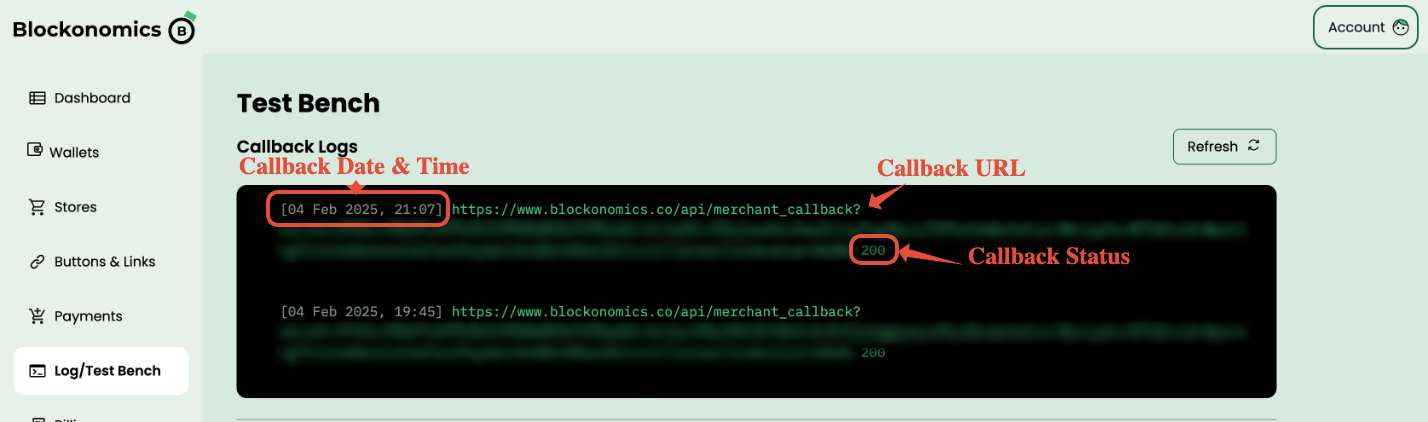
If the Callback Status appears in red (number at the end), then you are experiencing this issue and we cannot send callbacks to your server.
First confirm that Cloudflare is blocking the callback request.
- Log in to your Cloudflare Dashboard.
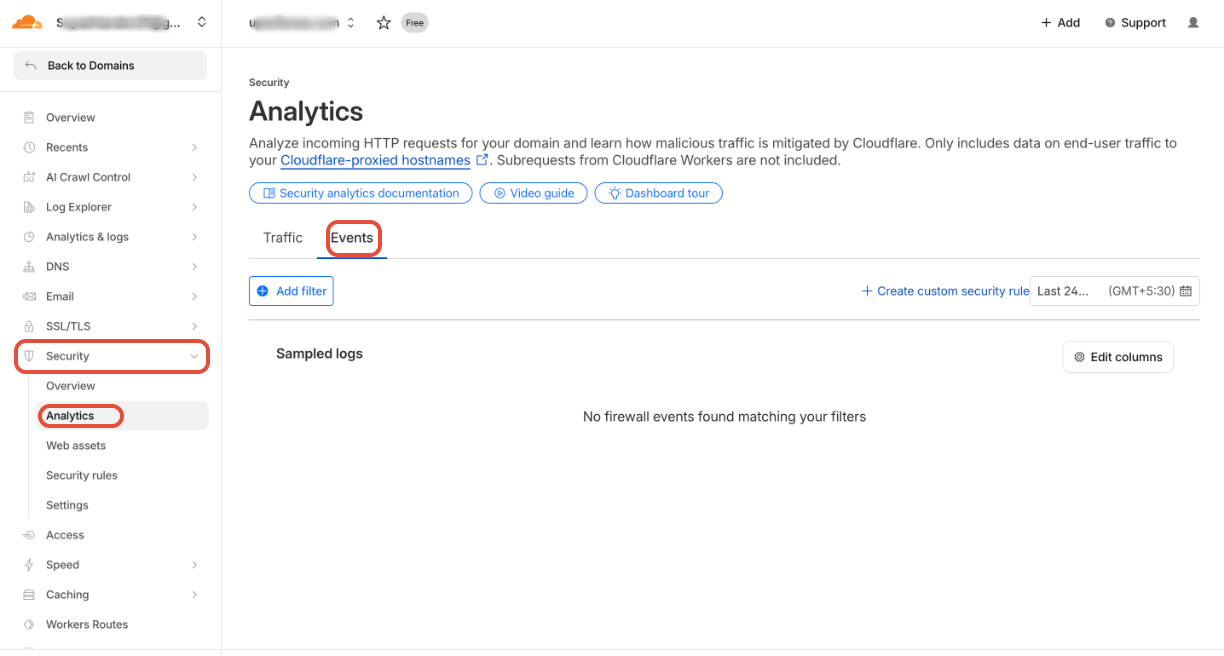
- Navigate to Security > Analytics > Events.
- Look for requests originating from the following IPs:
44.241.250.59 IPv4 (BTC / USDT callback server)
2600:1f14:f07:95c:8042:deb:9b43:1c6f IPv6 (BTC / USDT callback server)
44.225.81.126 (BCH callback server) - If you see these IPs being Blocked, Challenged, or Managed, then Cloudflare is preventing the callback from reaching your server.
If you see such events, continue with the steps below to whitelist the callback server.
Cloudflare
Add Security Rule
Please follow the steps below to add a Security (Custom WAF) rule.
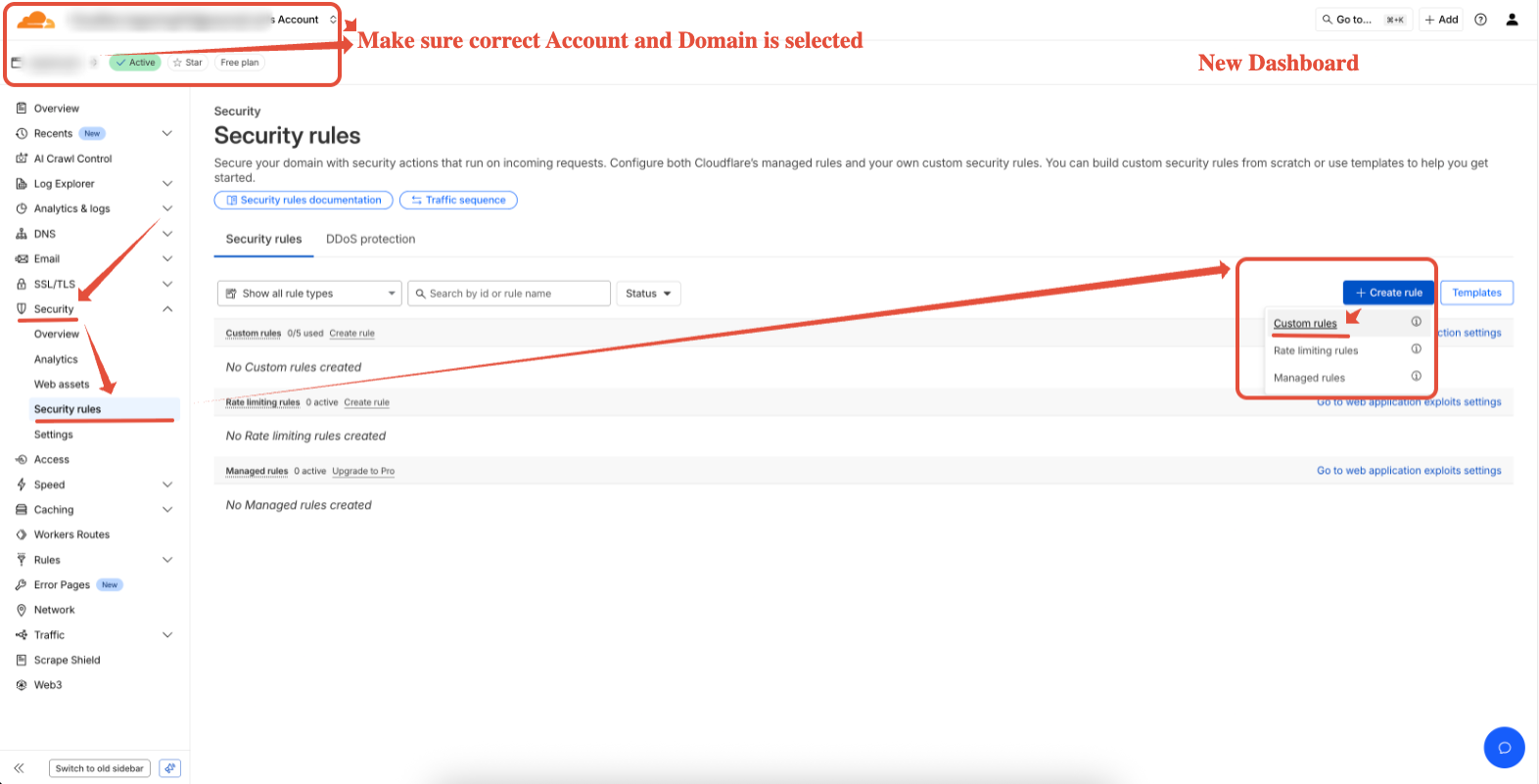
- In Cloudflare Dashboard, go to Security > Security rules and click the + Create rule > Custom Rules button to create a new rule.
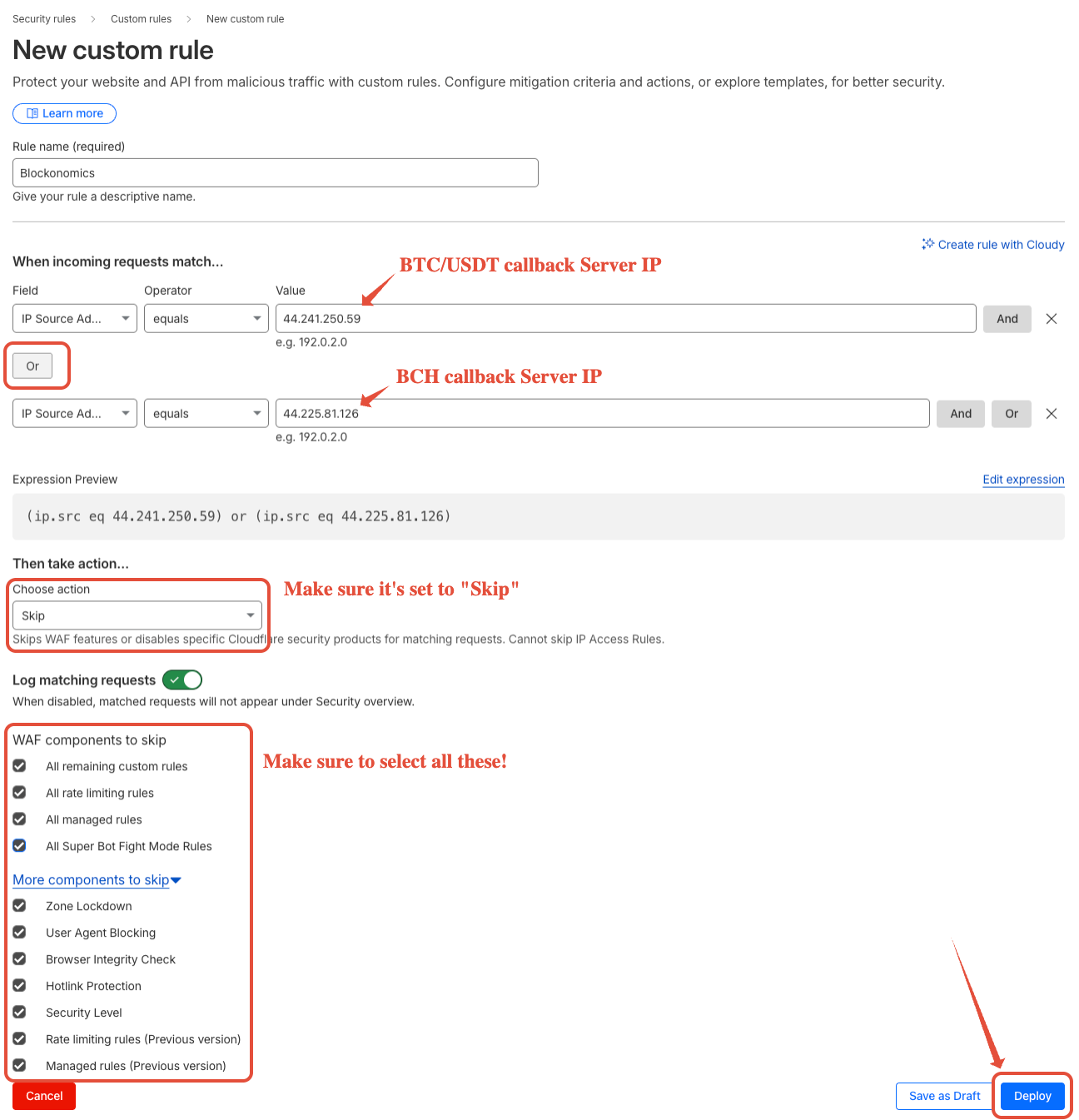
- Enter a memorable Rule name like
Blockonomics. - Click the dropdown below Field and select
IP Source Address.
In the dropdown below Operator, make sure the value is set toequals.
In the Value field, add the IP you want to whitelist. - To add more IPs, add more rows by clicking the Or button at the end of the row.
- Add the following IPs (as shown in the image below):
- 44.241.250.59: BTC/USDT callback server IPv4
- 2600:1f14:f07:95c:8042:deb:9b43:1c6f: BTC/USDT callback server IPv6
- 44.225.81.126: BCH callback server (If you are using BCH payment method)
- Make sure the Action is set to
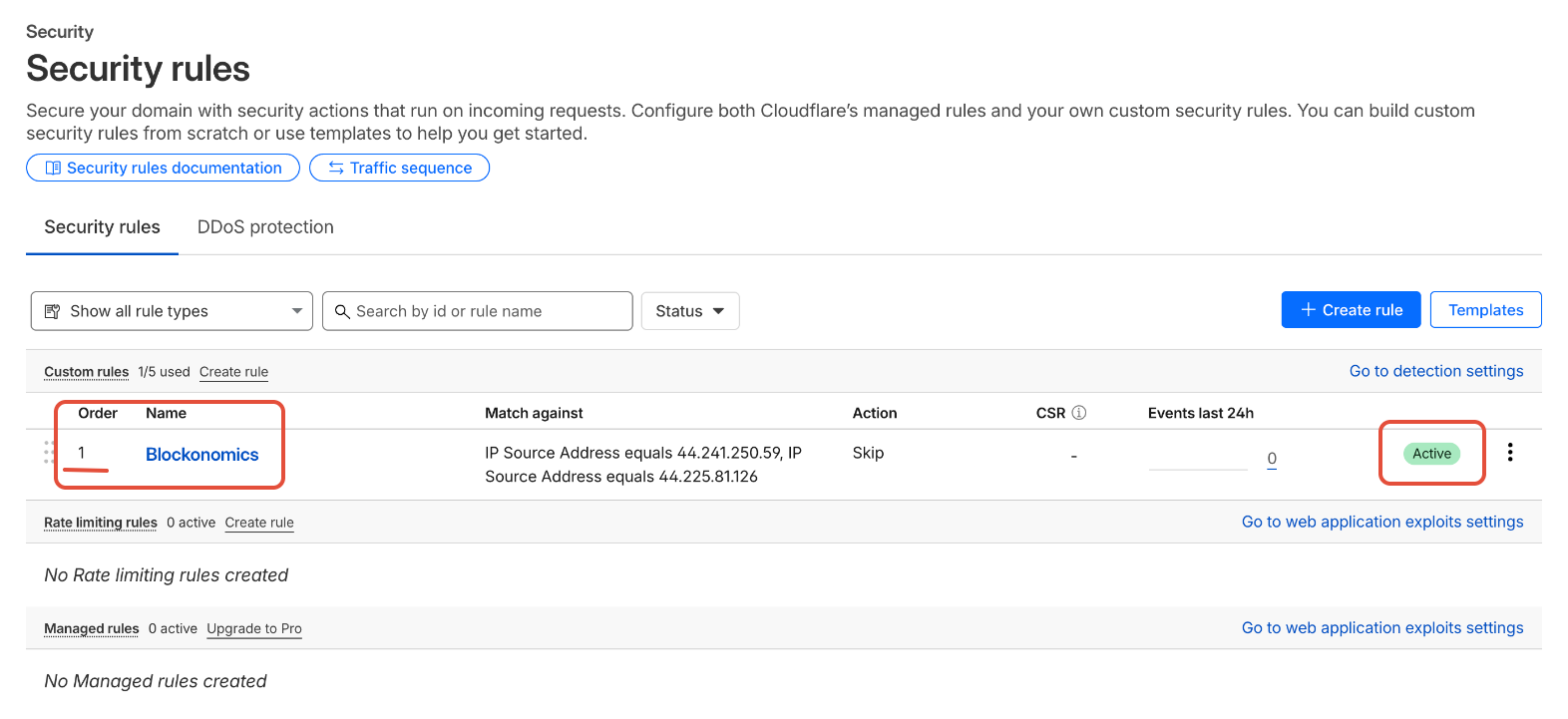
Skip, Log matching requests is enabled, and all rules are checked to be skipped. - Once you have made the changes as shown in the image below, click Deploy at the end of the screen.
- You should now see this new Security Rule added and Active under Security → Security Rulesas shown below:
Add Cache Rule
Please follow the steps mentioned below to add Cache rule:
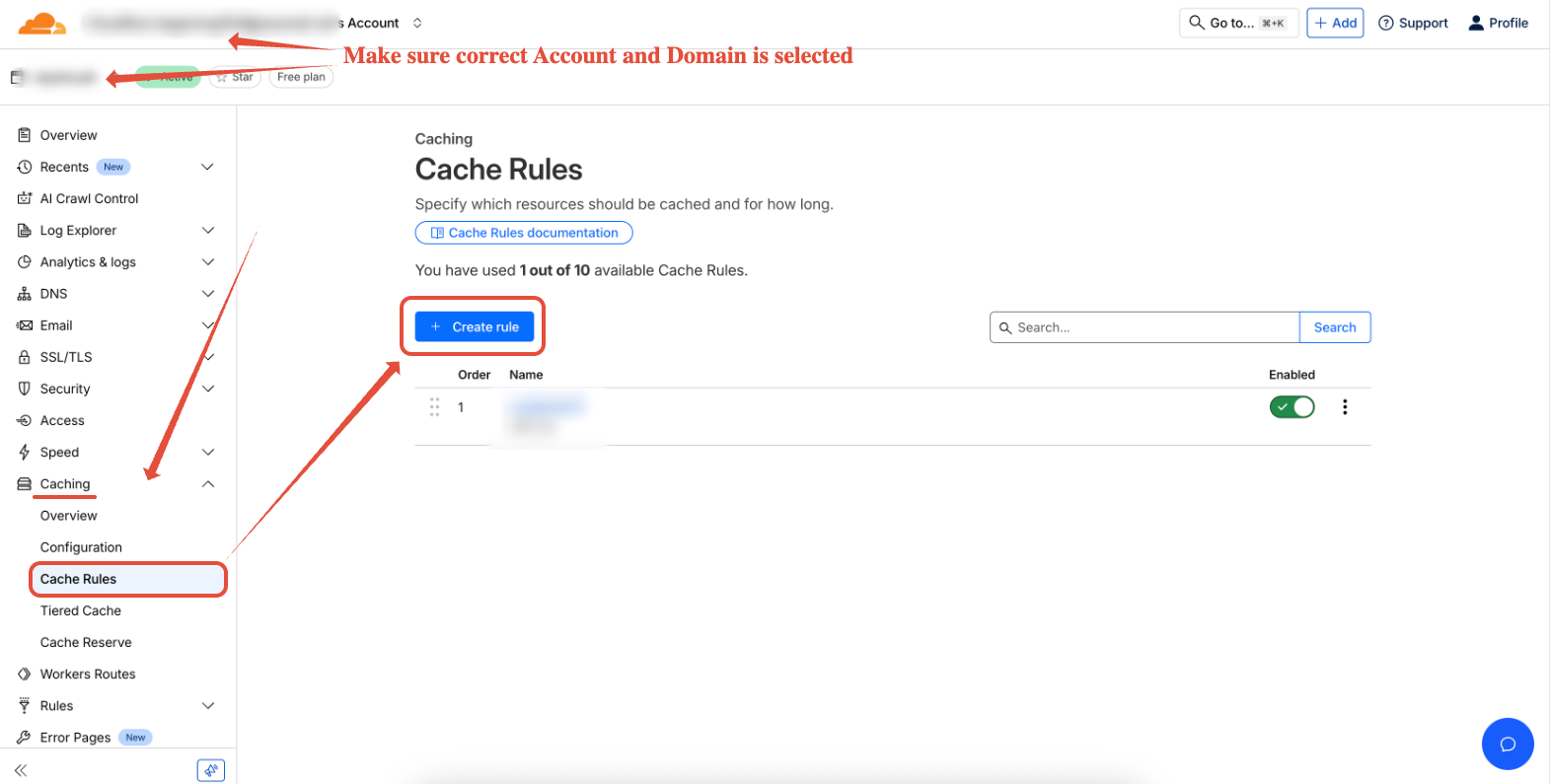
- In Cloudflare Dashboard, go to Caching > Cache Rules and click the + Create rule button to create a new rule.
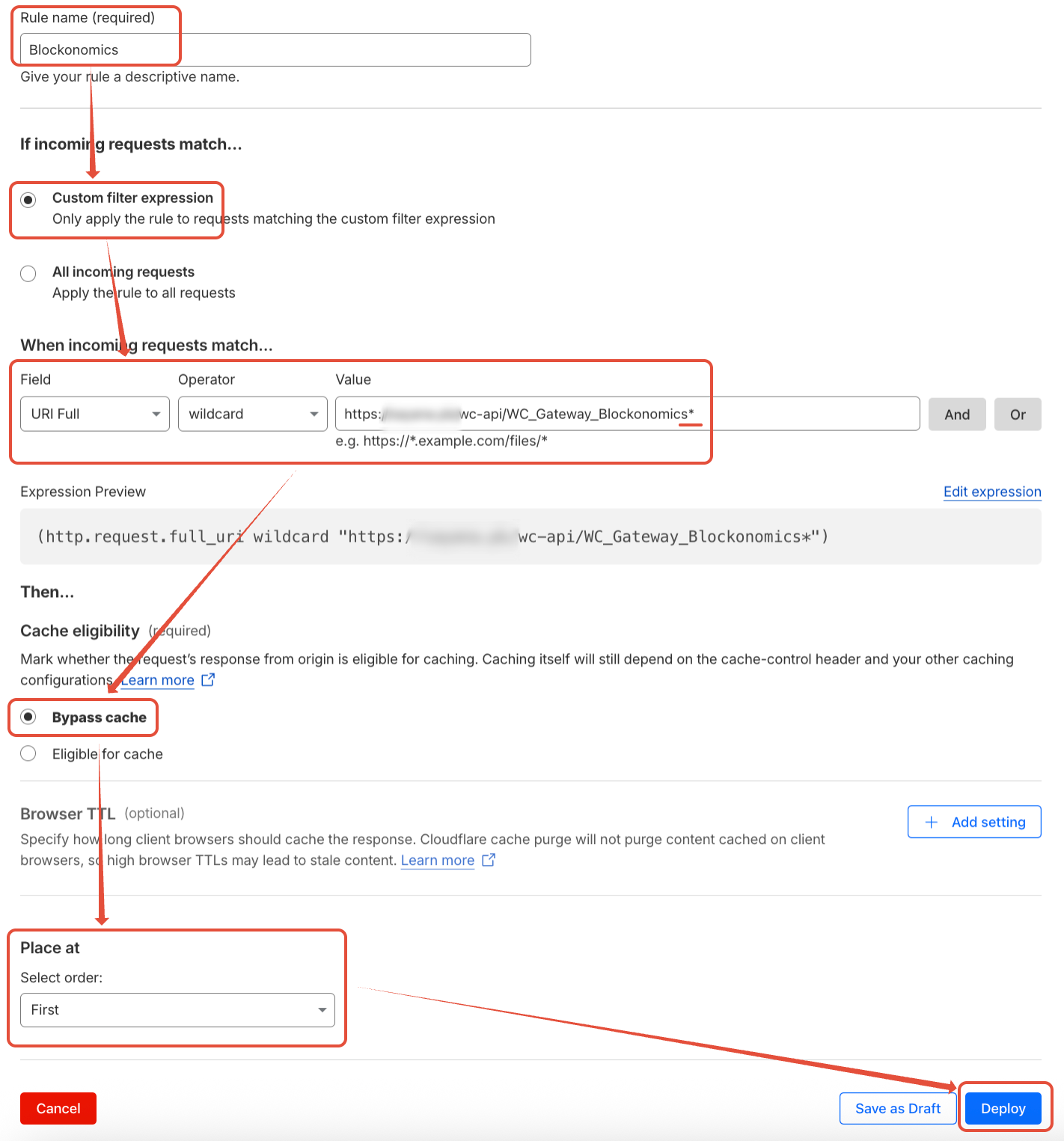
- In Rule name add something like
Blockonomics. - Under If incoming requests match... select
Custom filter expressionand the following values:- Field:
URI Full - Operator:
wildcard - Value: your store's callback URL with the path after
?secretremoved and*at the end- e.g. for a WordPress store, if your callback URL is
https://example.com/wc-api/WC_Gateway_Blockonomics/?secret=abc123, add the Value:https://example.com/wc-api/WC_Gateway_Blockonomics* - e.g. for a WHMCS store, if your callback URL is
https://example.com/modules/gateways/callback/blockonomics.php?secret=abc123, add the Value:https://example.com/modules/gateways/callback/blockonomics.php*
- e.g. for a WordPress store, if your callback URL is
- Field:
- Under Cache eligibility select
Bypass cache. - Under Place at > Select order select
First. - Once you have made all the mentioned changes as shown below, click Deploy.
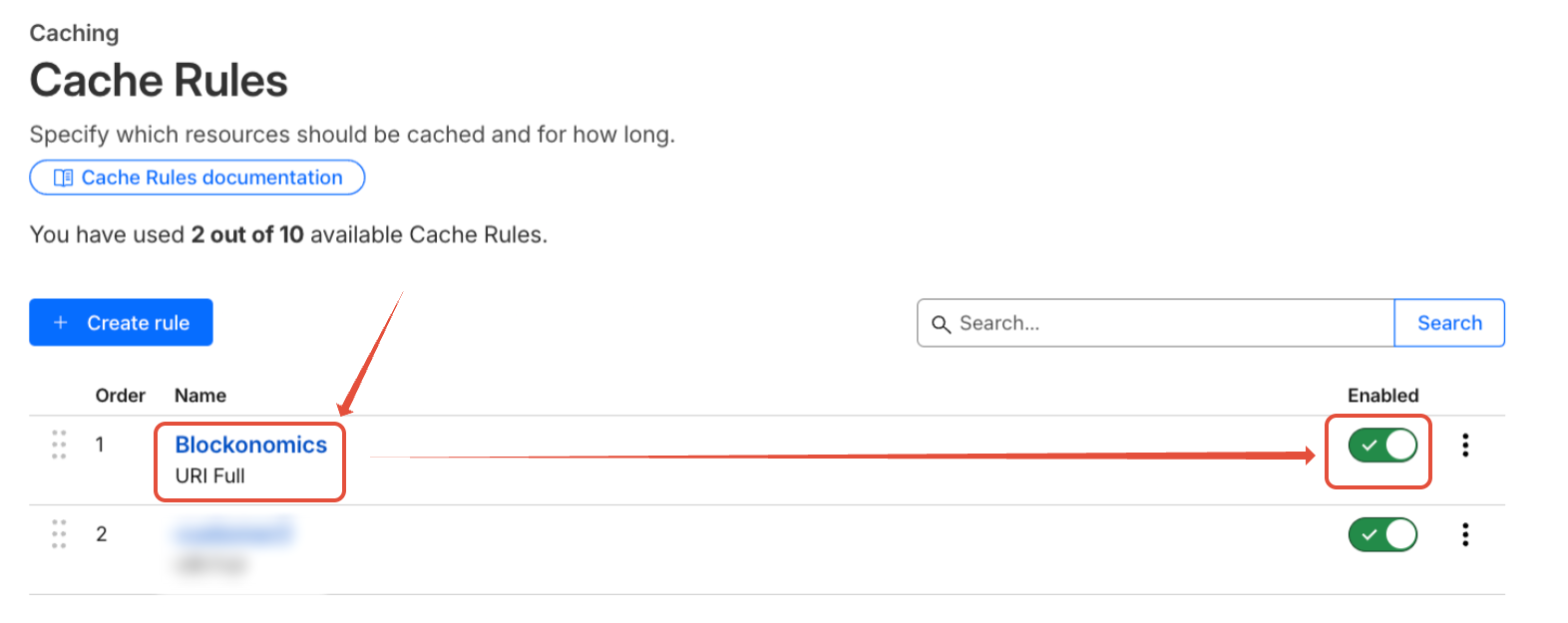
- Now in Caching > Cache Rules, you should have a Cache Rule added and Enabled as shown below:
Skip Bot Fight Mode [Optional]
If you are using free version you might have "Bot fight Mode" Instead of "Super Bot Fight Mode" which is for paid users only. This "Bot Fight Mode", if enabled, can still block our callbacks and WAF Rules added above can not skip "Bot Fight Mode" rule (However, they can skip "Super Bot Fight Mode" rule). To make callbacks works with "Bot Fight Mode" we would need to add Legacy IP Access Rules. Please note that In newer versions of CloudFlare dashboard, IP Access rules are added as Customer WAF rules, which as we have established, can not skip "Bot Fight Mode" rules. While CloudFlare have removed any buttons to navigate to Legacy IP Access Rules, you can still navigate to them using the link https://dash.cloudflare.com/?to=/:account/:zone/security/security-rules/ip-access-rules. You can add Legacy Access Rules by following the steps mentioned below:
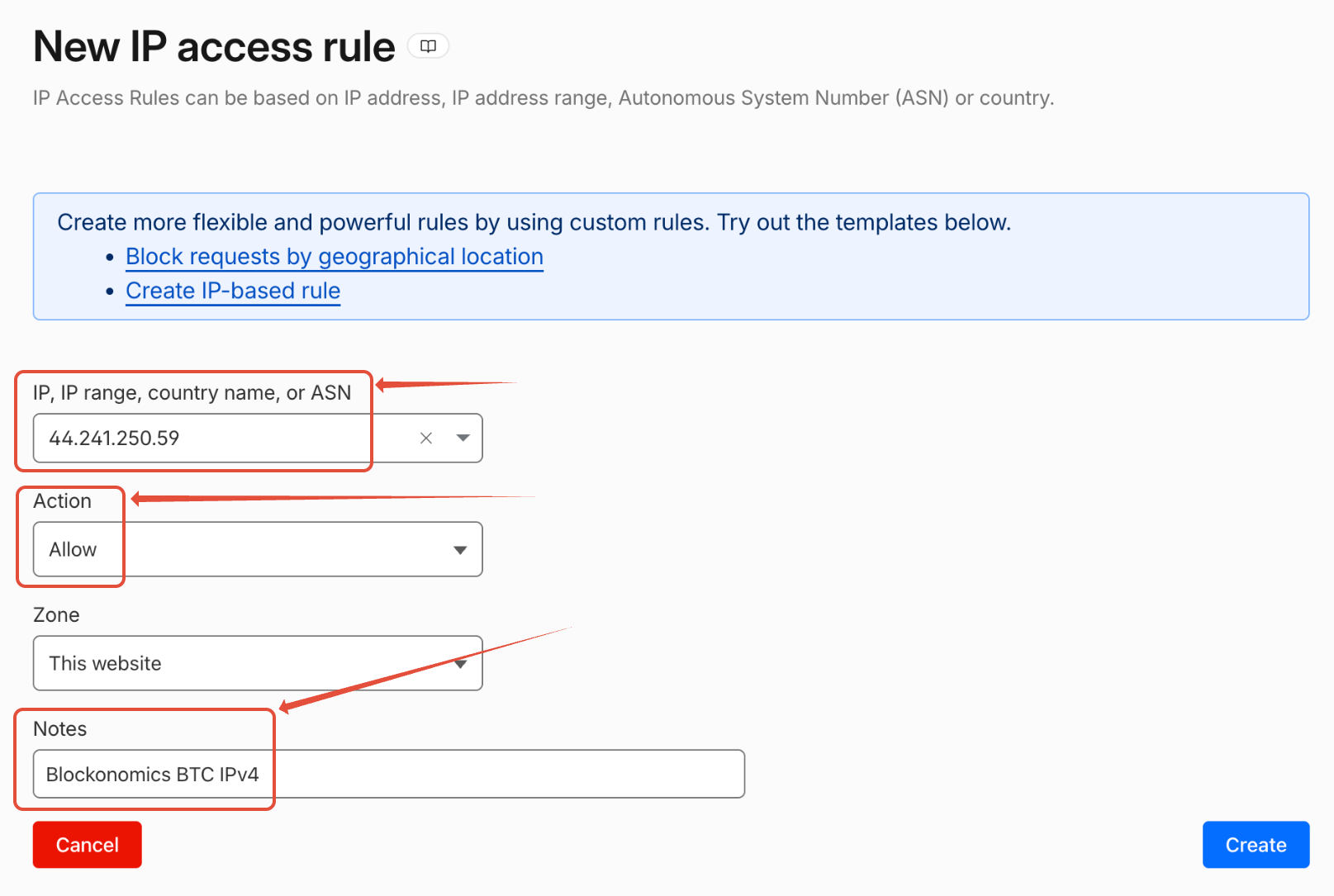
- To allow our BTC IPv4 Address Navigate to Legacy IP Access Rules, click on "+ Create Rule" and add following details as shown below
- Under "IP, IP Range, country name or ASN" past in out IPv4 "44.241.250.59"
- Under "Action" select "Allow"
- Under Notes add something like "Blockonomics BTC IPv4"
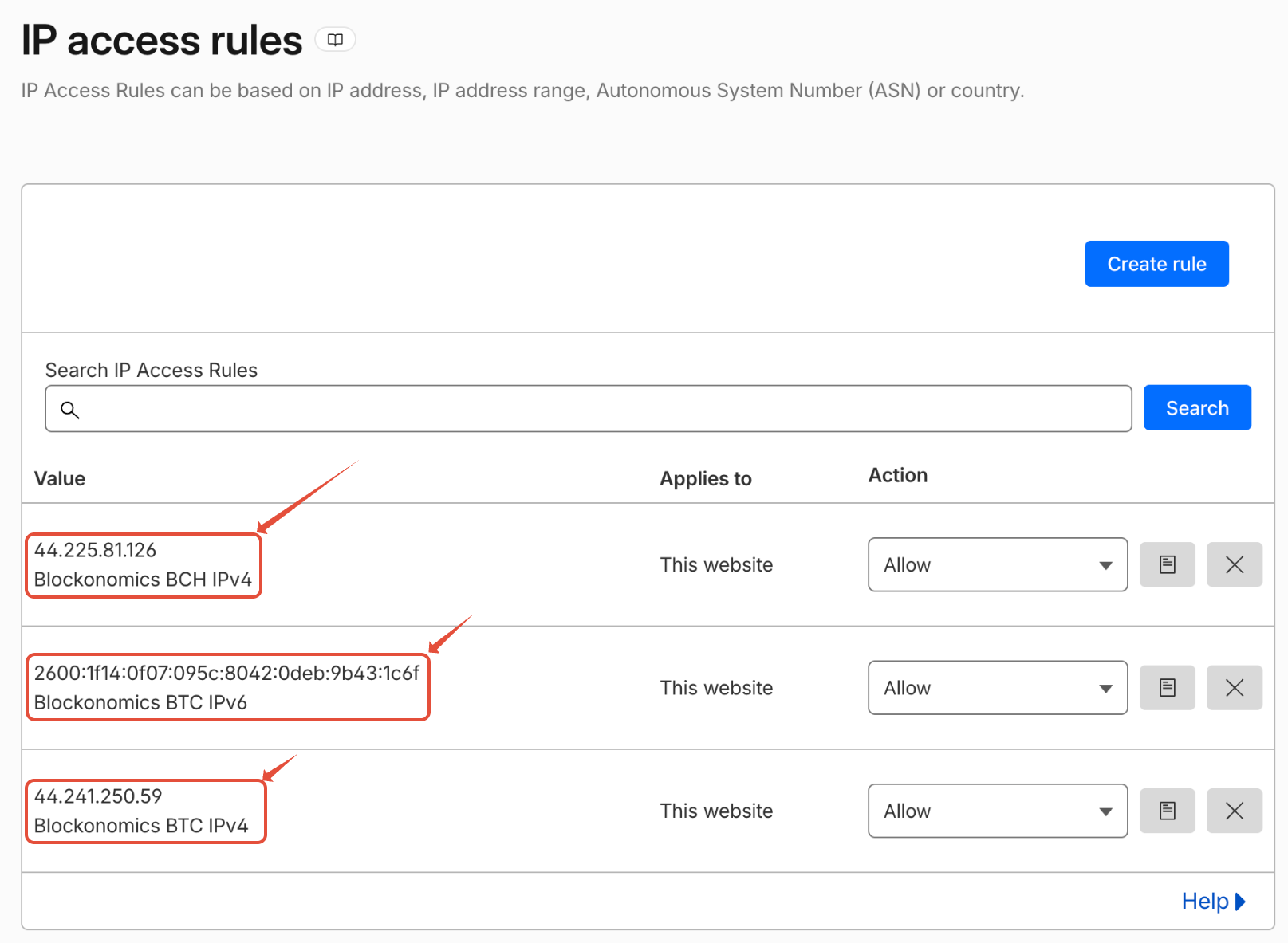
- Similarly navigate to Legacy IP Access rules again and add more Legacy IP Access Rules to allow our BTC IPv6 address "2600:1f14:f07:95c:8042:deb:9b43:1c6f" and BCH IPv4 Address "44.225.81.126"
- Once you have added all 3 Legacy IP Access rules, you should be able to see these rules like:
- Please make sure that you have added Legacy IP Access Rules in this step and you can see them at this link.
Disable Bot Fight Mode [Optional]
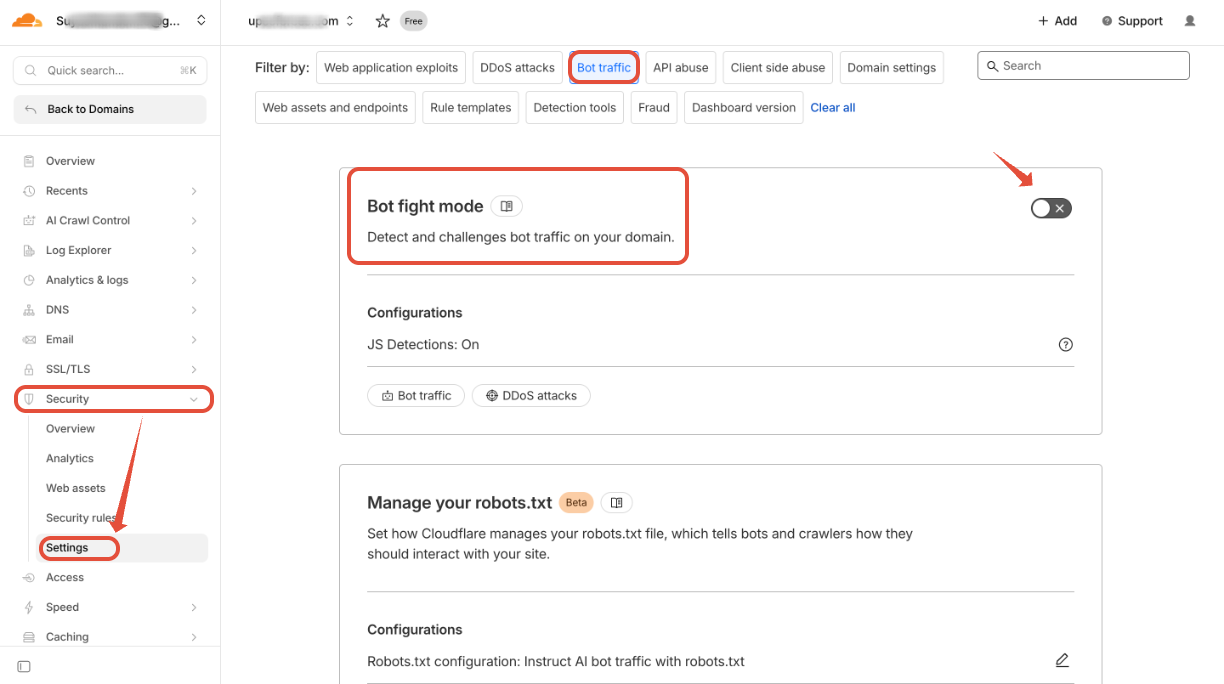
If your callbacks are still getting blocked by "Bot Fight Mode", you can try disabling it.
- If the WAF rule does not resolve the issue, temporarily disable Bot Fight Mode (Security > Settings, under Bot traffic) to test whether it is interfering with the callback.
- If callbacks begin working after disabling it, the WAF rule likely needs adjustment to correctly skip Bot Fight Mode for our IPs.
- If callbacks still fail, open a support ticket and include a screenshot of Security > Analytics > Events from your Cloudflare dashboard filtered by our IP address(es).
WordFence/Others
If you are using any other DDOS protection mechanism you can whitelist the IP of our callback server:
- 44.241.250.59: BTC/USDT callback server IPv4
- 2600:1f14:f07:95c:8042:deb:9b43:1c6f: BTC/USDT callback server IPv6
- 44.225.81.126: BCH callback server (If you are using BCH payment method)
End Note
- After bypassing the DDOS protection, generate multiple test callbacks within a minute from the Log/Test Bench page and confirm the Callback Logs show 200 status responses. Follow our Testmode Guide for more information.
- If you are using a custom or programmed API endpoint, make sure the callback endpoint returns a clean HTTP 200 response with no errors.